
0

Task Manager is an important in-built Program to manage all the processes going on your computer. Even when your Computer hangs, you need to open task manager to end that process. As such, Task Manager helps to start and end program even forcefully. Task Manager can also be used to manage RAM Usage by CPU and CPU performance. But sometimes, Some Trojans and Viruses block Task Manager and you get an error like below one!!!!
How to FIX Task Manager in Windows XP:
Windows Registry Editor Version 5.00
[-HKEY_LOCAL_MACHINE\SOFTWARE\Microsoft\Windows NT\CurrentVersion\Image File Execution Options\taskmgr.exe]
So Friends, Hope you find my article useful!!
Kindly share your views via comments on "How to FIX Task Manager in Windows XP"!!!
 Read More
How to FIX Task Manager in Windows XP
Task Manager is an important in-built Program to manage all the processes going on your computer. Even when your Computer hangs, you need to open task manager to end that process. As such, Task Manager helps to start and end program even forcefully. Task Manager can also be used to manage RAM Usage by CPU and CPU performance. But sometimes, Some Trojans and Viruses block Task Manager and you get an error like below one!!!!

How to FIX Task Manager in Windows XP:
- Open Notepad.
- Copy/Paste the below code in Notepad.
Windows Registry Editor Version 5.00
[-HKEY_LOCAL_MACHINE\SOFTWARE\Microsoft\Windows NT\CurrentVersion\Image File Execution Options\taskmgr.exe]
- Save this file with the name TaskManager.reg on your desktop.
- Now open this file.
- It will ask you to save this data in the registry.
- Click on Yes!!!
So Friends, Hope you find my article useful!!
Kindly share your views via comments on "How to FIX Task Manager in Windows XP"!!!
Read More
0
 Have you ever thought that you can hide the Recycle Bin from your desktop!!! So, you want to hide it, then we have an awesome trick to hide the Recycle Bin and make it invisible from everyone!! Well, the process of hiding Recycle Bin is pretty simple and requires minimal steps. Just follow the below steps!!
Instructions:
So, I hope you enjoyed my article!!!
Kindly share your views via comments on "Hide Recycle Bin in Windows"!!!
Read More
Hide Recycle Bin in Windows
Instructions:
- Firstly Download the Registry files from here.
- It is a RAR file,So extract it.
- After extracting open the folder.
- You will see two registry files in it.
- Click on HideBin to hide the Recycle Bin.
- And if in any case, you need the recycle bin back, then Click on ShowBin.
- That's all!!!
So, I hope you enjoyed my article!!!
Kindly share your views via comments on "Hide Recycle Bin in Windows"!!!
Read More
0
![How to Create Shortcut for Safety Remove Hardware]() You might be aware of Safety Remove Hardware button!!! Well, whenever you plugin any external storage media, like pen drive/memory card,etc., And remove it directly from your USB port, It may corrupt your data. But if you use Safety Remove Hardware, it assures that your data is safe. But I find that Most people remove pen drive directly which is unsafe and they may loose their important data. So, I am showing a tutorial to create a shortcut a Shortcut for Safety Remove Hardware on your desktop which will be visible to you and also will remind you to remove your hardware device using Safety Remove Hardware.
You might be aware of Safety Remove Hardware button!!! Well, whenever you plugin any external storage media, like pen drive/memory card,etc., And remove it directly from your USB port, It may corrupt your data. But if you use Safety Remove Hardware, it assures that your data is safe. But I find that Most people remove pen drive directly which is unsafe and they may loose their important data. So, I am showing a tutorial to create a shortcut a Shortcut for Safety Remove Hardware on your desktop which will be visible to you and also will remind you to remove your hardware device using Safety Remove Hardware.
Even, the safety remove Hardware Button is present in the Windows Tray but now you can place a shortcut for it on your desktop.
How to create a desktop shortcut for Safety remove Hardware:
![How to Create Shortcut for Safety Remove Hardware]()
![How to Create Shortcut for Safety Remove Hardware]()
This trick works on all windows Platforms including Windows XP,Vista and Windows 7.
So, I hope my article was useful for you!!!
Kindly share your views via comments on "Create Shortcut for Safety Remove Hardware"!!!
Read More
Create Desktop Shortcut for Safety Remove Hardware

Even, the safety remove Hardware Button is present in the Windows Tray but now you can place a shortcut for it on your desktop.
How to create a desktop shortcut for Safety remove Hardware:
- Make a Right Click on your desktop and Click on New and Click on Shortcut from the list.

- It will ask you the location. Just copy/paste the below code in it.
rundll32.exe shell32.dll,Control_RunDLL hotplug.dll
- Click on Next.

- Now give a desired Name for your Shortcut and Click on Finish Button..
You' done!!! You have create a shortcut for Safety Remove Hardware on your desktop!!! Now whenever you want to eject your hardware device like pen drive, then just double click on it and you can remove your Hardware device Safely!!!
![How to Create Shortcut for Safety Remove Hardware]()

This trick works on all windows Platforms including Windows XP,Vista and Windows 7.
So, I hope my article was useful for you!!!
Kindly share your views via comments on "Create Shortcut for Safety Remove Hardware"!!!
Read More
0
Read More
Tricks to Increase your Internet Speed
A Slow Internet Connection really costs time and makes you feel annoying. Many people ask me the ways to Increase their Internet Speed. However, it's possible to do so to some extent and Make your Internet much better then it was in the past. However, There are some tweaks and softwares that will help you to Increase your Internet Speed.
(1) Speed up your Internet Speed by 20%:
This is the first method to speed up your internet. This method might be known to most of the people. But still I want to share this with you!! However, this method help you to increase your Internet Speed by 20%. Just follow the steps below:
Improve youtube performance in Firefox and all other Browsers
You can even improve your Firefox Internet speed to a great extent by making some changes into it.
Get this method here.
(5) Some tips from my side:
I strongly recommend you to upgrade your broadband Plan to experience a faster and more stable Speed.
So, I hope this article was useful to you!!!
Please share your views via comments on "Tricks to Increase your Internet Speed"!!!

(1) Speed up your Internet Speed by 20%:
This is the first method to speed up your internet. This method might be known to most of the people. But still I want to share this with you!! However, this method help you to increase your Internet Speed by 20%. Just follow the steps below:
Go to start.
Go to run.
Type gpedit.msc and hit enter.
Expand Administrative Templates.
Then Network.
Then QoS Packet Scheduler.
A new list will appear. Click on Limit Reservable Bandwidth.
Just Disable it.
Click on Apply.
Hit OK. You're done!!
Now just restart your Computer. You will experience a change in your Speed.
(2) Free Accelerators to Speed up your Internet:
In this second method, I am providing Internet Accelerators to Speed up your Internet. However, these are some small utilities that will tweak and optimize your internet settings for you, and thereby, Speeding up your Internet.
Ashampoo Internet Accelerator
This utility comes with an awesome tool that will optimize and tweak your internet settings within a single click. It also has a feature to test your Connection speed.
Download Ashampoo Internet Accelerator 3 Here
Register for a Free trial for Ashampoo Internet Accelerator from here
Go to run.
Type gpedit.msc and hit enter.
Expand Administrative Templates.
Then Network.
Then QoS Packet Scheduler.
A new list will appear. Click on Limit Reservable Bandwidth.
Just Disable it.
Click on Apply.
Hit OK. You're done!!
Now just restart your Computer. You will experience a change in your Speed.
(2) Free Accelerators to Speed up your Internet:
In this second method, I am providing Internet Accelerators to Speed up your Internet. However, these are some small utilities that will tweak and optimize your internet settings for you, and thereby, Speeding up your Internet.
Ashampoo Internet Accelerator
This utility comes with an awesome tool that will optimize and tweak your internet settings within a single click. It also has a feature to test your Connection speed.
Download Ashampoo Internet Accelerator 3 Here
Register for a Free trial for Ashampoo Internet Accelerator from here
You can also try other accelerators like:
Speed Connect
Internet Accelerator
(3) Use TCP Optimizer to Boost Speed
TCP Optimizer is a Small tool helping you to optimize and tune up your Internet Speed.
Download TCP Optimizer
Speed Connect
Internet Accelerator
(3) Use TCP Optimizer to Boost Speed
TCP Optimizer is a Small tool helping you to optimize and tune up your Internet Speed.
Download TCP Optimizer
(4) Ways to Boost Speed in Firefox
You can use Speedyfox to increase your Internet Speed.
You can view our one of our previously posted article for this.
You can view our one of our previously posted article for this.
Speedyfox: Firefox Speed Booster
And you can even Improve your youtube performance in Firefox and all other browsers.You can view our one of our previously posted article for this.
And you can even Improve your youtube performance in Firefox and all other browsers.You can view our one of our previously posted article for this.
Improve youtube performance in Firefox and all other Browsers
You can even improve your Firefox Internet speed to a great extent by making some changes into it.
Get this method here.
(5) Some tips from my side:
- Use IDM to boost your Downloading Speed.
- Try Downloading torrents using IDM.
- Use a Good Anti-virus in your Computer.
- Remove unwanted add-ons,softwares,unwanted files from your computer.
- Update your drivers periodically.
- Keep a good maintenance of your Computer.
I strongly recommend you to upgrade your broadband Plan to experience a faster and more stable Speed.
So, I hope this article was useful to you!!!
Please share your views via comments on "Tricks to Increase your Internet Speed"!!!
Read More
1
 Downloading Torrents with High Speed is a great need nowadays. As torrent files are a better alternative to download various games,softwares,movies,etc. Well, Even I sometimes feel that torrents are very slow to download files as compared to a normal download speed. The speed is too slow in any torrent files down-loader. So, I found a way to download torrent files using IDM. It is true that now you can download torrents using IDM. If you are not using IDM, them download IDM 6.07 Build 14 (latest version) of IDM from HERE.
Follow the steps to Download Torrent files using IDM:
(1.)Firstly Grab your torrent from www.torrentz.eu . Download the torrent file (.torrent) extension file of your desire.
(2.)Now after downloading the (.torrent) file, go to this website www.torcache.net
Now upload the torrent file that you had just downloaded and click on cache button.
(3.)It will show you a new generated link of your torrent file.
(4.)Copy that new link.
(5.) Now go to www.torrific.com and create a new account there. After signing up, Login into your Account.
(6.)In the text field, paste the link of the new torrent file that you had copied in Step 4 and Click on GET.
(7.) You will see all the torrent files that are present in that torrent. Now click on Initiate Bittorrent Transmission.
(8.) Now all the files have been ready to be downloaded. Click on any file that you want to download.
(9.) A new pop-up window of IDM will open.
(10.) Click on Start Downloading.
So, this trick helps to download torrents with high speed. Well, If you are having a slow torrent download speed, I strongly recommend you to use this software.
So, Enjoy downloading torrents at high speed using IDM.
So, I hope you will enjoy downloading torrents at high speed using IDM!!
Kindly Like us on Facebook.
Do not forget to Subscribe to our feeds.
Kindly share our views via comments on "Trick to Download Torrents using IDM"!!!
Read More
Trick to download torrents using IDM

Follow the steps to Download Torrent files using IDM:
(1.)Firstly Grab your torrent from www.torrentz.eu . Download the torrent file (.torrent) extension file of your desire.
(2.)Now after downloading the (.torrent) file, go to this website www.torcache.net
Now upload the torrent file that you had just downloaded and click on cache button.
(3.)It will show you a new generated link of your torrent file.
(4.)Copy that new link.
(5.) Now go to www.torrific.com and create a new account there. After signing up, Login into your Account.
(6.)In the text field, paste the link of the new torrent file that you had copied in Step 4 and Click on GET.
(7.) You will see all the torrent files that are present in that torrent. Now click on Initiate Bittorrent Transmission.
(8.) Now all the files have been ready to be downloaded. Click on any file that you want to download.
(9.) A new pop-up window of IDM will open.
(10.) Click on Start Downloading.
So, this trick helps to download torrents with high speed. Well, If you are having a slow torrent download speed, I strongly recommend you to use this software.
So, Enjoy downloading torrents at high speed using IDM.
So, I hope you will enjoy downloading torrents at high speed using IDM!!
Kindly Like us on Facebook.
Do not forget to Subscribe to our feeds.
Kindly share our views via comments on "Trick to Download Torrents using IDM"!!!
Read More
2

Tune up utilities 2012 is the latest version introduced by tune up utilities. It is the best alternative and the most popular utility as a Windows Optimization tool. The new version has all the features present as they were in Tune up Utilities 2011, and it has brought new improvements and features and fixed bugs in it. Well, Tune up utilities helps you to provide a better maintenance to your Computer.
Features of Tune up Utilities 2012:

Read More
Tune up Utilities 2012 Free Download
Tune up utilities 2012 is the latest version introduced by tune up utilities. It is the best alternative and the most popular utility as a Windows Optimization tool. The new version has all the features present as they were in Tune up Utilities 2011, and it has brought new improvements and features and fixed bugs in it. Well, Tune up utilities helps you to provide a better maintenance to your Computer.
Features of Tune up Utilities 2012:
- Boost your Overall Speed
- Helps you to defragment Hard drives.
- Best System Optimization tool
- Improve System Performance and Battery life.
- Analyze and troubleshoot your PC.
- Redesigned Interface.
- It includes a 1-click maintenance feature.
- Delete unnecessary data and clean temporary files and gain disk space.
- Fix Problems.
- Customize Data.
- Tune up registry Cleaner.
- And many more.
So, after reviewing all the features of this resourceful utility, it's time to download it.
DOWNLOAD TUNE UP UTILITIES 2012 HERE
If you are new to tune up utilities, and want to review all its features in details and want to learn how to use it, then refer the below link.
REVIEW FEATURES OF TUNE UP UTILITIES 2012 HERE
DOWNLOAD TUNE UP UTILITIES 2012 HERE
If you are new to tune up utilities, and want to review all its features in details and want to learn how to use it, then refer the below link.
REVIEW FEATURES OF TUNE UP UTILITIES 2012 HERE
So, I hope you will enjoy using tune up utilities 2012.
Kindly like us on Facebook.
Share your views via comments on this post.
Keep Visiting.
Kindly like us on Facebook.
Share your views via comments on this post.
Keep Visiting.
Read More
5
 Hey friends....I hope you all are fine. Are you are pissed off with the slow Firefox speed??? Then Today am going to provide you a very useful tool for you that is SpeedyFox, which will help you to get rid of slow Firefox Speed. SpeedyFox is a small utility which compresses all your saved data and thereby, enhances your Firefox speed to a great way. It compresses all the data that makes Firefox heavier and eats up its speed. It will compress it and will make it faster and smoother.
Features of Speedyfox:-
SPEEDYFOX FREE DOWNLOAD FOR WINDOWS

So, I hope my article was useful to you!!
Please do comments on this post!!
Keep Visiting!!!
Read More
SpeedyFox: Firefox Speed Booster
Features of Speedyfox:-
- It will boost your startup time by 3 times.
- Boost your browsing speed.
- Quick Operation with Cookies.
SPEEDYFOX FREE DOWNLOAD FOR WINDOWS
- After Downloading SpeedyFox, Just run it.
- Check mark on Run Firefox After Optimization.After that, Click on Speed up my Firefox. {Make sure that Firefox is closed}
- When it will be optimized, the Firefox window will open and you will see a Sudden increase in your Browsing Speed!!Enjoy!!!!!!
So, I hope my article was useful to you!!
Please do comments on this post!!
Keep Visiting!!!
Read More
5
 Hey friends...I hope you all are fine. As we all know that our default tool for copying and moving files is too slow . Sometimes if you are moving large files, you just get annoyed by the time it will take. Even it happens that the computer hangs if you are moving multiple files at the same time. And this delay is more annoying when you are using Windows Vista or Windows 7. But there is a solution to get rid of this. There are some awesome third party tools which are much better then the default MS copying tools as they are capable of copying files with a super fast speed.
There are many third-party softwares that can do this job for you. But here we are providing the top copying Managers that are much faster,easy to use,and free of cost.
I have found a lot but I am going to provide you the best ones.
_______________________________________________________________________________
Super Copier
Super Copier is the Best super fast speed copier I have ever seen. I am currently using this amazing utility. It is very small and a Light-weight Program. It will run in the system tray and does not eats up your much memory and CPU usage. You can even Pause,resume, schedule you copying processes. Super copier helps a lot in increasing your copying speed.
Whenever any error occurs during the copying process, it will show you the actual reason behind the error.

TeraCopy
TeraCopy is also one of the most used copy manager. The best part of this utility is that it can resume file transfer even if any error occurs during the copying process. When you install it, it will automatically integrate into your Right click context menu.

So, I shared the top fast copiers and shared my views about them with my own experience. You can also know about some other copiers like:
Copy Handler
Talent Copy
Extreme Copy
So, I hope my article was useful to you!!!
Please do comments on this post!!
Keep Visiting!!!!
Read More
Trick to Copy Files with Super Fast Speed in windows 7, Vista and XP
There are many third-party softwares that can do this job for you. But here we are providing the top copying Managers that are much faster,easy to use,and free of cost.
I have found a lot but I am going to provide you the best ones.
_______________________________________________________________________________
Super Copier
Super Copier is the Best super fast speed copier I have ever seen. I am currently using this amazing utility. It is very small and a Light-weight Program. It will run in the system tray and does not eats up your much memory and CPU usage. You can even Pause,resume, schedule you copying processes. Super copier helps a lot in increasing your copying speed.
Whenever any error occurs during the copying process, it will show you the actual reason behind the error.
TeraCopy
TeraCopy is also one of the most used copy manager. The best part of this utility is that it can resume file transfer even if any error occurs during the copying process. When you install it, it will automatically integrate into your Right click context menu.

So, I shared the top fast copiers and shared my views about them with my own experience. You can also know about some other copiers like:
Copy Handler
Talent Copy
Extreme Copy
So, I hope my article was useful to you!!!
Please do comments on this post!!
Keep Visiting!!!!
Read More
0
 Hii Friends....I hope you all are fine. It may happen many times that you come across such images that contains awesome/useful Quotes/content and you may need them in the form of text but you are unable to type them or write them as they might be too lengthy. In such a case, there is a free online tool which comes to rescue and will help you to do this job for you easily.
Free OCR is an online tool which will help you to extract the text from any image easily. It will do this work in a few moments and free of cost.
The process is pretty simple:-
(1) You need to go to the site.
Read More
How to Extract Text from any Image Online

Free OCR is an online tool which will help you to extract the text from any image easily. It will do this work in a few moments and free of cost.
The process is pretty simple:-
(1) You need to go to the site.
(2) Upload your text image.
(3) Enter the captcha.
(4) Click on Send File.
(5) Wait for few moments.
(6) Yipee!! The text from the image is in front of you!!
(7) Now You can copy and use your desired text!!
Now enjoy using this Free OCR online tool to extract text from any image!!!
SO, I hope my article was useful to you!!!
Please do comments on this post!!
Keep Visiting!!!
(3) Enter the captcha.
(4) Click on Send File.
(5) Wait for few moments.
(6) Yipee!! The text from the image is in front of you!!
(7) Now You can copy and use your desired text!!
Now enjoy using this Free OCR online tool to extract text from any image!!!
SO, I hope my article was useful to you!!!
Please do comments on this post!!
Keep Visiting!!!
Read More
0

Steps to Password Protect your ZIP files using WinRar:-


You are done!!
You have password protected your ZIP file!!!
Read More
Trick to Password Protect ZIP files using WinRar

Hii Friends....I hope you all are fine. As we all know that, WinRar is a powerful Archive Manager that can be used to create archive and extract (rar,zip,etc..) files. Well, it has one awesome in-built feature which helps to encrypt your files and password protect them. You can easily use this feature by following some simple steps.
Steps to Password Protect your ZIP files using WinRar:-
- Right click on the folder that you want to password protect and click on Add to archive.
- In the new pop-up window, select the Advanced Tab.And click on Set Password.
- Now a menu will open asking you the password.Enter your desired password and click on OK.
You are done!!
You have password protected your ZIP file!!!
So, I hope you have enjoyed my article!!!
Please do comments on this post!!!
Keep Visiting!!!
Please do comments on this post!!!
Keep Visiting!!!
Read More
2
 Hii Friends...I hope you all are fine. Some of you may know that you cannot access blocked sites from your School, colleges,etc. Mainly they block Facebook,orkut,twitter,etc. You cannot access these sites directly!!! In such a case, you need to workout with Proxy sites. These proxy sites help you to access blocked sites on your Computer. So in this article, I have listed the top 10 proxy sites!!!
Proxy sites also help us to hide our identity on the Internet that is hiding our IP address. Actually proxy sites act as a mediator between the user(browser) and the Internet(Server).
 (2) Proxify


So friends, Use these top proxy sites to browse anonymously and enjoy Accessing blocked sites on your Computer!!!
So, I hope you have enjoyed my article!!!
Please do comments on this post!!!
Read More
List of Top 10 free Proxy sites
 Hii Friends...I hope you all are fine. Some of you may know that you cannot access blocked sites from your School, colleges,etc. Mainly they block Facebook,orkut,twitter,etc. You cannot access these sites directly!!! In such a case, you need to workout with Proxy sites. These proxy sites help you to access blocked sites on your Computer. So in this article, I have listed the top 10 proxy sites!!!
Proxy sites also help us to hide our identity on the Internet that is hiding our IP address. Actually proxy sites act as a mediator between the user(browser) and the Internet(Server).
These proxy sites will help us to bypass the ISP's IP that you will be using at that time and will create a different IP. As such, Proxy are third party Servers which help us to browse like a anonymous user who has no name and location.
LIST OF TOP 10 FREE PROXY SITES:-
(1) Hidemyass
(1) Hidemyass
(3) Newipnow
(4) iBypass
(6) KProxy
(7) Pagewash
(8) Anonr
(9) Browser9
(10) Megaproxy
So friends, Use these top proxy sites to browse anonymously and enjoy Accessing blocked sites on your Computer!!!
So, I hope you have enjoyed my article!!!
Please do comments on this post!!!
Keep Visiting!!!
Read More
3


Now your Word document is protected from unwanted eyes!!!
So, I hope my article was useful to you!!!
Please do comments on this post!!!
Keep Visiting!!!
Read More
Trick to Password Protect Microsoft Word 2007 Files
Hii Friends...I hope you all are fine. Mainly we prefer Microsoft Word to create documents!! But Sometimes we have some documents saved in our computer that we want avoid from other people to access them. Such as Office reports or college projects,notes,etc. However, Microsoft word 2007 has a useful security feature to password protect our private documents. So today am going to share a very useful trick "Trick to password protect Microsoft Word 2007 files"!!
Read More...
Steps to Password Protect Microsoft Word 2007 files:
Read More...
Steps to Password Protect Microsoft Word 2007 files:
- Open any document that you want to password protect.
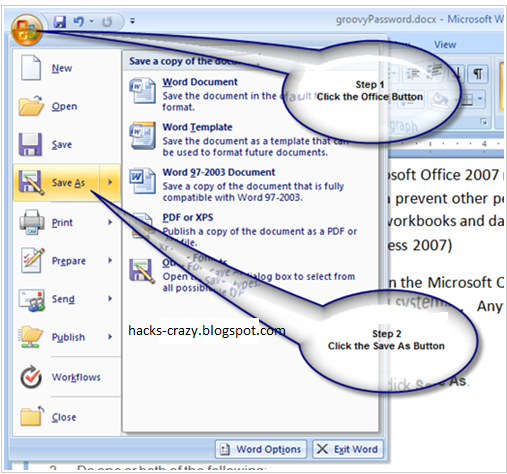
- Click on the Microsoft Office button present at the top left corner of the window.
- Click on Save as option.
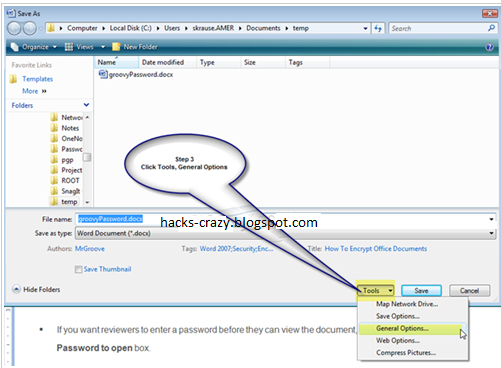
- Now a new window will appear. Click on Tools option at the bottom of the window and select General Options.
- Now again a new window will appear saying General Options. You will see the top two options- Password to open and Password to Modify. You can select either one or both options.
The first is Password to open -It will ask this password every time when someone tries to open the document. If one tries to view the document, he needs to enter this password.
The second is Password to modify- It will ask this password every time when someone tries to modify the document that is tries make any changes in your document. If one tries to make changes in the document, he needs to enter this password to save the changes.
- Give your document a password of your wish and click on OK button.
- That's all!!!
Now your Word document is protected from unwanted eyes!!!
So, I hope my article was useful to you!!!
Please do comments on this post!!!
Keep Visiting!!!
Read More
2
 Hii Friends...I hope you all are fine. Today am going to share a very useful trick. As sometimes we are unable in formatting our Pen drives. As it may be affected by virus (mainly autorun) or any other problem, so we cannot format it by using the quick format feature. So today am going to share a useful trick-"How to format an unformatable pen drive using DOS command"!!!
Read More...
Steps:
I hope this trick was useful to you!!!
Please do comments on this post!!
Keep Visiting!!!
Read More
Trick to Format an Unformatable Pen drive
Read More...
Steps:
- Insert your pen drive in the USB port.
- Go to run.
- Type the following command
format h: and ht enter
[Here h: refers to the removable disk hard drive letter] - It will ask you that you want to format or not. Y or N !!! Hit Y and press enter.
- You are done!!! Enjoy!!!
I hope this trick was useful to you!!!
Please do comments on this post!!
Keep Visiting!!!
Read More
2
 Hii Friends....I hope you all are fine. As we all know that Windows 7 has excellent themes. But many of us do not know that Windows has some hidden themes. As the themes that are visible to us are country specific that is according to our demographic location. And rest of the themes are hidden in our C drive or where our windows has been installed. Today am going to tell you the trick to unlock those hidden themes. If we enable these hidden themes then we can use them.
Read More...
Steps to unlock hidden themes in windows 7:-
Read More
Trick to Unlock Hidden Themes in Windows 7
Read More...
Steps to unlock hidden themes in windows 7:-
- Please make sure that you can view hidden files and folders. If not you can view it by going to Control Panel<Folder Options<View<Check on Show Hidden files and folders<Apply<OK
- Now make a click on the address bar and paste the given below command:-
C:/Windows/Globalization/MCT and hit enter. A new folder will appear.
- Now, In this new folder, you will see folders named as MCT-AU,MCT-CA,etc. where these AU,CA,etc refer to country codes.
- Inside each MCT folder, you will see a theme folder.
- Click on that theme folder. You will see the country code of that Particular MCT folder.
- Double Click on it!! Yippee!!! You have unlocked that theme!!!
- Now Right click on desktop and click on Personalize to use those themes!!!
Enjoy!!
I hope this trick was useful to you!!!
Please do comments on this post!!
Keep Visiting!!!
I hope this trick was useful to you!!!
Please do comments on this post!!
Keep Visiting!!!
Read More
0

Read More
Trick to use use Mobile Camera as Webcam
Hii Friends....I hope you all are fine. In today's 21st century, we all are surrounded by
various devices and one of them is Webcam. It is a device that heps to do video chat with various people all around the world. So,In any conditions,if we need a web camera, we need to purchase it separately. And nowadays everybody has a Mobile Phone. So, today am going to share a Interesting trick to use a Mobile's Camera as Webcam.
Read More...
However,It's better to use your Mobile Camera as a Webcam rather than buying a new one. However, This trick supports only Symbian and Windows Phones. This application is free to download and use.
Smartcam is an application by which you can use your camera phone as an effective video capture device.
Read More...
However,It's better to use your Mobile Camera as a Webcam rather than buying a new one. However, This trick supports only Symbian and Windows Phones. This application is free to download and use.
Smartcam is an application by which you can use your camera phone as an effective video capture device.
To use this application, you must install this application on your on your mobile as well as your computer.
Make sure that you have Bluetooth in your Computer as well as mobile.
Now firstly download this application on your Phone as well as Computer
and then connect them via Bluetooth. Now enjoy using Webcam.
It is better if you have Bluetooth in both of your devices because if you have Bluetooth then you can position your Mobile in your desired manner while doing a video chat.
However, this application is mainly created to support Nokia Phones. Specifically Symbian Phones and Windows Phones including Nokia Series 60 phones including both S60 v2.0 and S60 v3.0devices and many more phones.
So, I hope my article was useful to you!!!
If you have any problems regarding your cell phone support to this application, Then please ask us via comments. We will soon reply you.
Keep Visiting!!!
Make sure that you have Bluetooth in your Computer as well as mobile.
Now firstly download this application on your Phone as well as Computer
and then connect them via Bluetooth. Now enjoy using Webcam.
It is better if you have Bluetooth in both of your devices because if you have Bluetooth then you can position your Mobile in your desired manner while doing a video chat.
However, this application is mainly created to support Nokia Phones. Specifically Symbian Phones and Windows Phones including Nokia Series 60 phones including both S60 v2.0 and S60 v3.0devices and many more phones.
So, I hope my article was useful to you!!!
If you have any problems regarding your cell phone support to this application, Then please ask us via comments. We will soon reply you.
Keep Visiting!!!
Read More
1
 Hii Friends....I hope you all are fine!! As most of us know VLC Player is an awesome media player that supports almost all Video Codecs. But most of the people are unaware about it's amazing feature that this amazing utility can also convert videos. So, it is a multi-purpose media player. This will convert videos easily in your desired format. If you do not have this amazing utility, Download it from here.


Read More
Trick to convert Videos using VLC Media Player

- Open VLC Media Player.
- Now select Media Option.
- Select Convert/Save option from the drop down menu.
- Now a new pop-up window will occur. Click on Add button located under the files to select the that you want to convert.
- You can also add subtitles which will be hardcoded to the converted file.To add subtitles check the Use a subtitle option.(Optional)
- Now Click on Convert/Save button. You will see another window.
- Select the Destination File and Profile( Conversion Format ).
- Click on start button to begin conversion.
- And now the video Conversion will start and you will see something like streaming!!
Now you have learnt to Convert videos using VLC Media Player!!
So I hope you have enjoyed my article!!!
Please do comments on this post!!!
Keep Visiting!!!
Keep Visiting!!!
Read More
